
An ergonomic assessment checklist is a set of yes/no questions about your chair, desk, screen, keyboard, mouse, laptop, room and work routine. Every “no” is something to fix. The checklist below draws on two free public forms: OSHA’s computer workstation evaluation checklist in the US and the HSE’s display screen equipment (DSE) workstation checklist in the UK.
Sit the way you normally work and go through it section by section. Write down each “no” next to what you’ll change.
How an ergonomic assessment checklist works
OSHA’s evaluation checklist has 57 items in seven sections and says “A ‘no’ response indicates that a problem may exist.” The HSE’s DSE workstation checklist (CK1) works the same way. “Yes” answers need no further action. A “no” needs investigating, and the assessor records what they’ll do in an “Action to take” column.
If you’d rather fill in a form, both are free. CK1 is a 10-page PDF you can print, and OSHA’s checklist is a single web page in its Computer Workstations eTool.
The HSE form also says it “only covers the workstation and work environment”. Breaks and training need checking separately, so sections 7 and 8 below cover work routine and discomfort.
When you need an ergonomic assessment
In the UK it’s a legal duty. The HSE says that if workers use screens “daily, as part of their normal work, continuously for an hour or more, employers must do a workstation assessment.” The HSE assessment page lists four more triggers: a new workstation is set up, a new user starts, a workstation or the way it’s used changes, or users complain of pain or discomfort.
The regulations say an assessment must be reviewed if “there is reason to suspect that it is no longer valid” or “there has been a significant change”. They don’t set a yearly interval.
The US has no federal rule requiring a workstation assessment. OSHA’s ergonomics FAQ notes that Congress rescinded its original ergonomics rule, but says employers must still “keep their workplaces free from recognized serious hazards, including ergonomic hazards” under the General Duty Clause. California goes further. Its repetitive motion injury rule requires a worksite evaluation, exposure controls and training once more than one employee doing the same task, such as word processing, has a doctor-diagnosed repetitive motion injury reported in the last 12 months.
Wherever you work, the same moments are good times to run through the list yourself. A new desk, a new job, a move to working from home or a new ache all count.
The checklist
1. Chair and sitting position
Start with the chair, because its height decides where your arms meet the desk.
- Can you adjust the seat height while sitting in the chair?
- Do your feet rest flat on the floor, or on a stable footrest if the desk can’t be lowered? (OSHA)
- Are your thighs roughly parallel to the floor?
- Is there a gap of 2-3 cm between the front of the seat and the back of your knee? (HSE)
- Does the backrest support your lower back?
- Are you sitting upright or slightly reclined? Cornell’s workstation guidelines say “the best seated posture is a reclined posture of 100-110 degrees”.
- If the chair has armrests, do they support your forearms without pushing your shoulders up or stopping you getting close to the desk?
If several of these are “no”, our guide to the best ergonomic chair for posture covers what to look for.
2. Desk and work surface
- Is the keyboard just below elbow height? (HSE)
- Are your forearms roughly parallel to the floor, at about 90 to 100 degrees to your upper arm? (OSHA)
- Do your thighs clear the underside of the desk?
- Is there enough leg room to sit close to the keyboard?
- Are the screen and keyboard straight in front of you, so you don’t twist your back?
At a standard desk, tall people often struggle with the first three. Desk ergonomics for tall people explains how to work out your desk height from your elbows.
3. Monitor
- Is the screen directly in front of you?
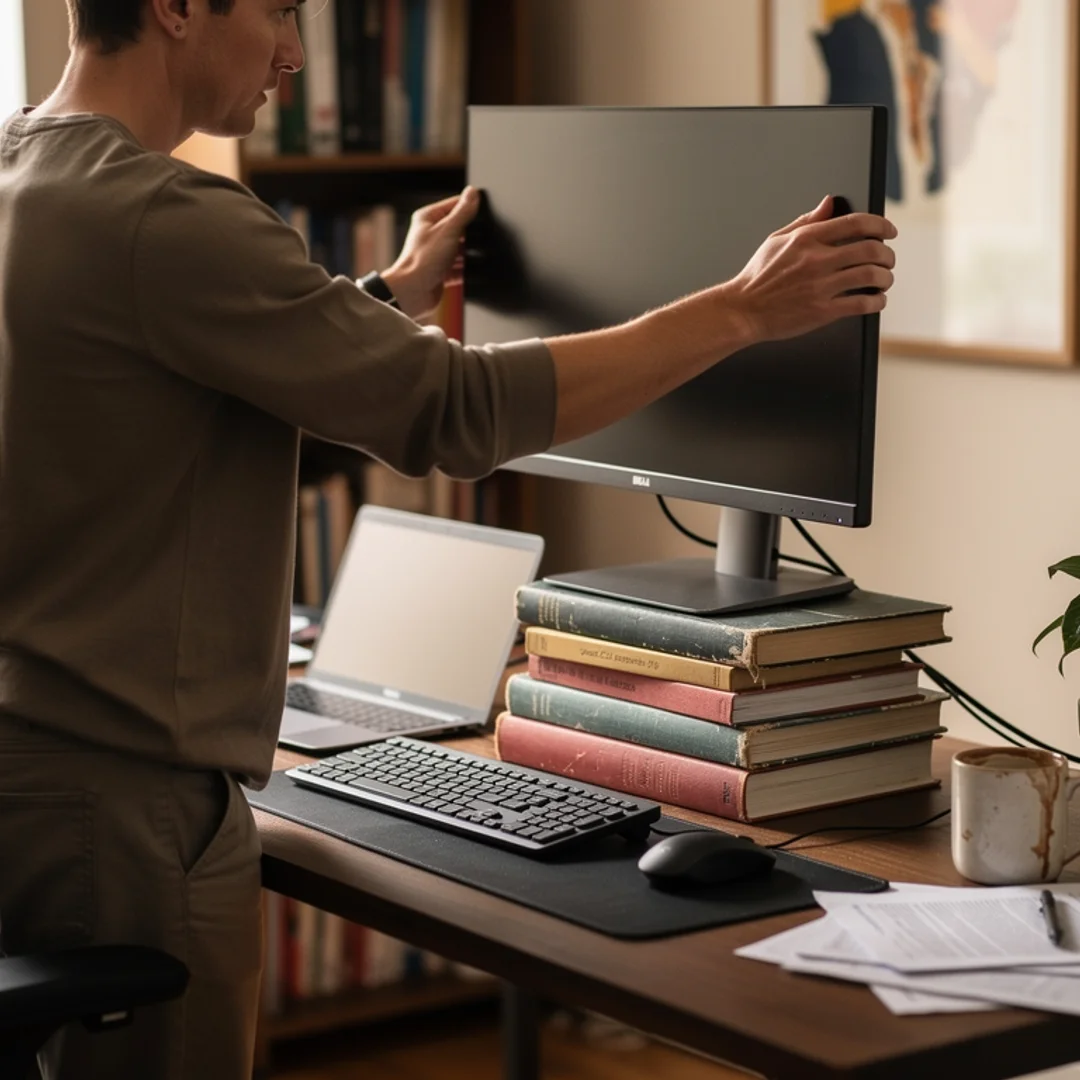
- Is the top of the screen at or slightly below eye level?
- Is the screen about an arm’s length away?
- With two monitors, is the main one straight ahead and the second one beside it?
- Can you read the screen without leaning in or tipping your head back? If you wear bifocals or varifocals, pay extra attention to this one.
- Is the screen free of glare from windows and lights? The HSE suggests holding a mirror in front of the screen to see where reflections come from.
- Are brightness and contrast comfortable, so you don’t squint?
If your screen sits too low, monitor height and neck pain covers how to raise it.
4. Keyboard and mouse
- Is the mouse right next to the keyboard, at the same level, so you don’t reach for it?
- Are your wrists straight, not bent up, down or sideways?
- Are your shoulders relaxed and your elbows close to your sides?
- Does the mouse fit your hand?
- Are your wrists and forearms clear of hard or sharp desk edges?
5. Laptops, tablets and phones
- If a laptop is your main computer, is it set up like a desktop? OSHA’s checklist says laptops used as a primary computer should follow “the same ergonomic principles as desktop computers”, with a separate keyboard and mouse.
- Is the laptop raised so the screen is near eye level? The HSE’s laptop advice is to keep the “Keyboard and mouse separate from the laptop so screen can be elevated on a laptop riser or similar”.
- If you type on a tablet for more than 2 hours a day or 30 minutes at a time, do you have a separate keyboard? That’s OSHA’s threshold.
For a laptop setup, our laptop stand guide compares the options.
6. Room and environment
These come from the environment section of the HSE form.
- Is there enough room to change position and move about? The form notes that “Space is needed to move, stretch and fidget.”
- Is the lighting right, neither too bright nor too dim?
- Does the air feel comfortable?
- Is the temperature comfortable?
- Is the noise level comfortable?
7. Work routine and breaks
- Do you take short breaks away from the screen every hour or so? The HSE’s guidance on breaks says “5 to 10 minutes every hour is better than 20 minutes every 2 hours.”
- Do your breaks get you up and moving, or at least stretching and changing position?
- Can you switch between sitting and standing during the day? OSHA’s checklist says “Prolonged sitting or standing should be avoided.”
- Do you look away from the screen at something in the distance now and then?
- If you’re in the UK, has anyone told you that you can ask for an eye test?
8. Discomfort
The HSE checklist ends with questions for the person at the desk.
- Do you have aches, pain or eye strain that you put down to working at your computer?
- Does it get worse as the day goes on?
- Has anything changed since your last check, such as a new chair, a new monitor or longer hours?
In the UK, pain or discomfort is one of the triggers for a new assessment, so if you’re employed, tell your employer about a “yes” to the first question.
Where the guidelines disagree on monitor height and distance
The official sources give different figures for screen height and distance.
| Source | Screen height | Screen distance |
|---|---|---|
| OSHA evaluation checklist | Top of screen at or below eye level | ”about 18 to 20 inches or arm length” |
| OSHA monitors page | Top “at or slightly below eye level" | "between 20 and 40 inches (50 and 100 cm)“ |
| HSE | ”Top of screen level with eyes" | "about an arm’s length away” |
| Cornell | Eyes level with a point about 2-3” below the top of the monitor casing | ”around an arms length” |
| CCOHS | Monitor at “about 15 degrees (or slightly lower) below the horizontal line" | "an arm’s length” |
All five land on roughly an arm’s length away, with the top of the screen at about eye level. Your eyesight decides where in that range you sit. CCOHS notes that people who wear bifocals, trifocals or progressive lenses “may find placing the top of the monitor slightly below eye level more comfortable.”
Assessing a home office
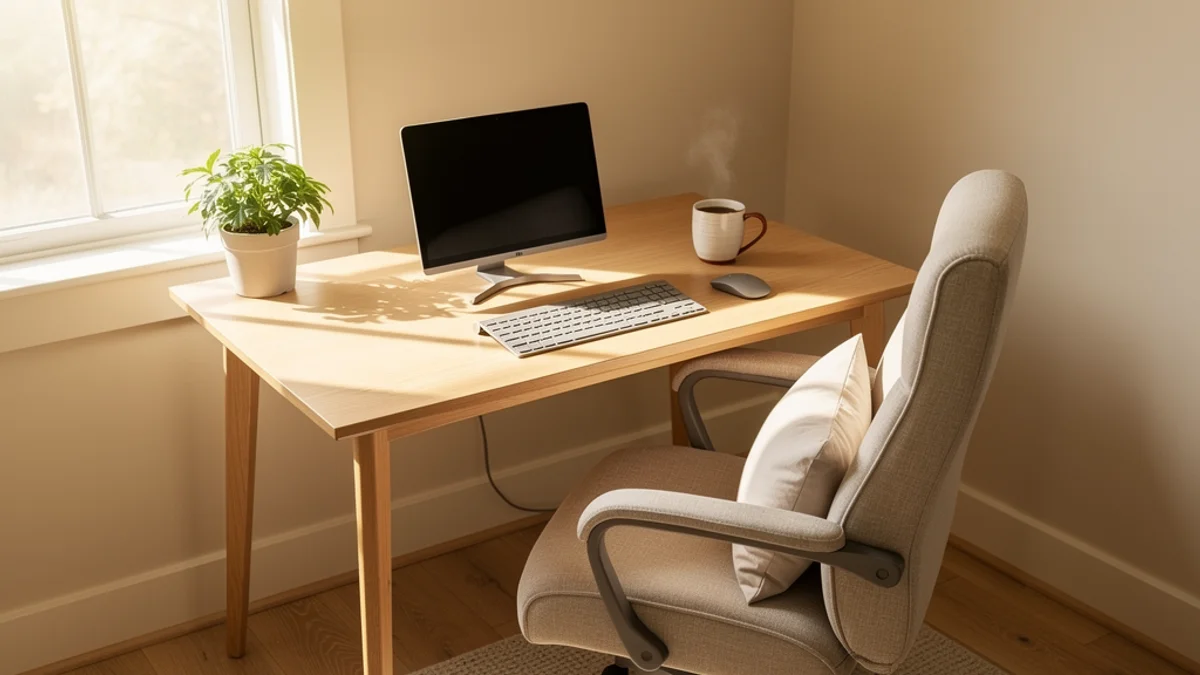
The same checklist works at home. The HSE’s home working guidance for UK employers says “Workers can complete a self-assessment provided they have been given suitable training.” If someone works both at home and in the office, the assessment should cover both.
The same page says home workers “may not necessarily need office-type furniture or equipment at home to achieve a good posture.” Where the assessment shows that equipment is needed, “your workers cannot be charged for this.”
Common “no” answers at home come from a laptop on the kitchen table, a dining chair with no lower-back support, or a desk facing a bright window. A laptop stand, a separate keyboard and mouse, and a cushion behind your lower back are cheap places to start. Ergonomic home office on a budget goes through more options.
What the research says about workstation changes
A 2018 Cochrane review of ergonomic interventions for office workers pooled 15 randomised trials with 2,165 workers. It notes that studies put the share of office workers with musculoskeletal disorders at 20 to 60 per cent.
On workstation changes it found that “Workstation adjustment (one study) and sit-stand desks (one study) did not have an effect on upper limb pain or discomfort.” An arm support used with an alternative mouse did reduce new cases of neck or shoulder disorders (risk ratio 0.52, moderate-quality evidence from two studies). The evidence that extra breaks reduced neck discomfort in data entry workers was very low quality.
A trial by Amick and colleagues, published in Spine in 2003, compared office workers given an adjustable chair plus training, training alone, or the training only after the study ended. Workers rated their symptoms at the start, middle and end of the workday. After 12 months, the chair-with-training group “lowered symptom growth over the workday (P = 0.012)”, meaning symptoms built up less as the day went on. Training alone didn’t slow that build-up (P = 0.461), although average pain levels fell over the workday in both intervention groups. The authors recommend giving training together with adjustable furniture.
So the evidence for furniture changes on their own is weak, and the one trial above found the best result when an adjustable chair came with training.
Keeping your posture right after the assessment
An assessment records your setup on one day. OSHA’s first checklist item is “Head and neck are balanced and in-line with torso (ears directly above the shoulders not bent forward or back)”, and that can change over a long afternoon even when the desk hasn’t moved.
The HSE says assessment software “is not an assessment on its own”, and that break-reminder software doesn’t remove an employer’s duty to plan breaks. Cornell’s guidelines do recommend software that “will prompt you to take a rest break at appropriate intervals”.
SitApp works alongside an assessment. It’s a desktop app for Mac, Windows and Linux that watches your posture through your webcam, nudges you when you start to slouch, and can remind you to take breaks. All the image processing happens on your computer. For habits that help between assessments, read how to stop slouching at your desk and our guide to movement breaks.
FAQ
How often should an ergonomic assessment be done?
In the UK, whenever a workstation is new, a new user starts, something changes, or someone reports discomfort. The regulations don’t set a fixed interval. In the US there’s no federal requirement.
Can I do an ergonomic assessment myself?
Yes. The HSE says workers can self-assess if they’ve had suitable training.
Does OSHA have an ergonomic assessment checklist?
Yes. OSHA’s Computer Workstations eTool includes a 57-item evaluation checklist.
Who pays for home office equipment in the UK?
The employer. If the assessment shows equipment is needed, the HSE says workers cannot be charged for it.
