
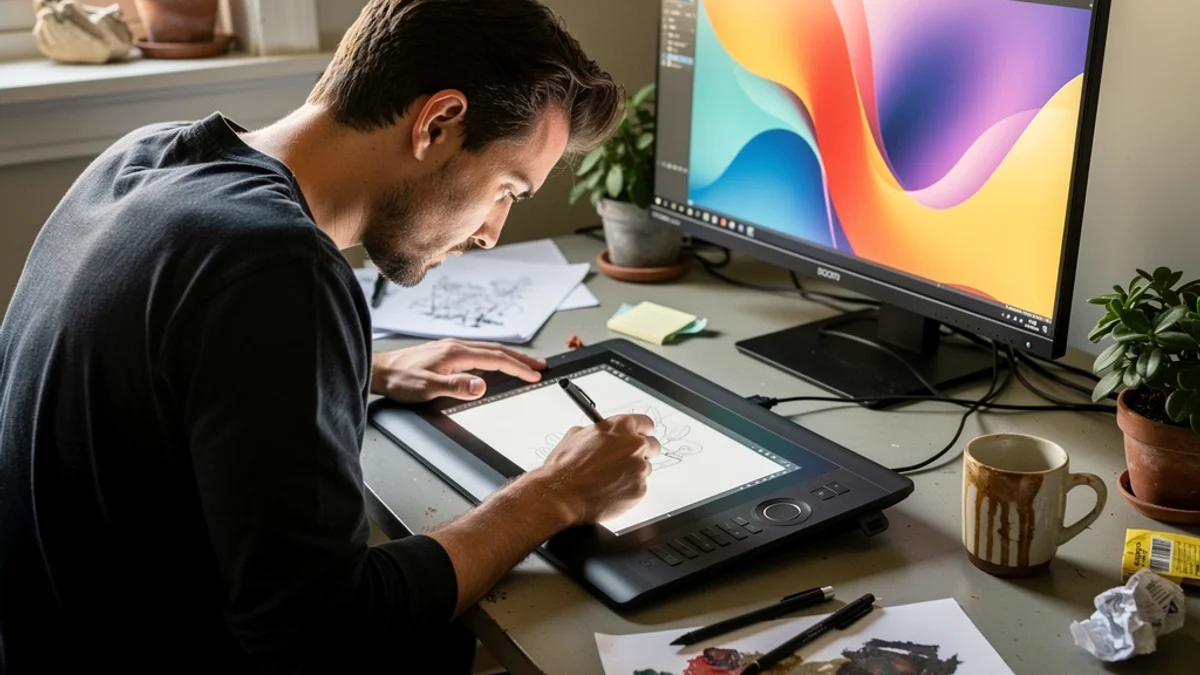
There is a specific posture every digital artist falls into without noticing. You start a piece sitting upright, full of good intentions. Two hours later your nose is a foot from the tablet, your chin is tucked toward your chest, your shoulders have rolled forward over the pen, and you’re gripping the stylus like it owes you money. Your neck has been taking notes the whole time.
The research matches the anecdotal picture. A 2022 cross-sectional survey of computer users working from home found 60.3% reported neck pain, 59.5% lower back pain, and 49.6% shoulder pain. A larger peer-reviewed study of 773 computer office workers put overall musculoskeletal pain at 58%, with shoulder complaints at 42% and neck at 35%. Designers tend toward the worse end of that range, because the job adds hazards office advice never mentions: a flat drawing surface that drags your head down, a stylus that loads one hand for hours, and the kind of flow state where you forget you have a body at all.
Most ergonomics guides for designers copy office-desk advice and swap one word in the title. This one covers the parts that are specifically yours: the tablet, the pen, the hunch, and how to keep good posture alive while you’re lost in a piece.
Why Designers Need Their Own Posture Playbook
A developer and a graphic designer can sit at identical desks and end up with different injuries, because the physical job is different. Here’s what makes design work its own thing:
- The drawing surface pulls your head down. A keyboard sits roughly vertical to your gaze. A Wacom Intuos, a Cintiq, or an iPad lying flat on the desk sits under it - so you look down, not forward. That single geometry change is the root of the designer hunch.
- One hand does all the loading. Typing spreads work across ten fingers. Drawing funnels hours of fine, repetitive, pressured movement through one hand wrapped around a pen. That concentration is why artists get hand and wrist trouble at rates that alarm even them.
- Flow states are longer and deeper. Rendering, lining, or pushing pixels on a layout is absorbing in a way that suppresses the body’s “you’re tight” signals. You only get the message when you stand up.
- Color-accurate monitors complicate the layout. Many designers run a calibrated display alongside the tablet, which tempts an awkward twist between drawing down at the tablet and looking up-and-across at the screen.
- The gear encourages bad habits. A beautiful Cintiq invites you to lay it flat and lean in. An iPad is portable enough to end up on your lap on the sofa. The better the tool feels, the easier it is to use it in a body-wrecking position.
So “sit up straight and take breaks” doesn’t cut it. The tips below are tuned for how artists and designers actually work.

The Hunch Trap: What Looking Down at Your Tablet Does to Your Neck
This is the one that catches people off guard once they see the actual numbers.
Your head weighs about 10 to 12 pounds when it sits balanced over your shoulders. Tilt it forward, and the effective load on your cervical spine climbs fast. According to the Cleveland Clinic, a slight glance down turns your head into the equivalent of a 27-pound weight; at a 30-degree tilt it’s about 40 pounds; with your head dropped toward your lap it’s “upwards of 60 pounds of force on your neck.” Those figures trace back to a widely cited 2014 study by Dr. Kenneth Hansraj in Surgical Technology International, which modelled the load at 27 pounds at 15 degrees, 40 at 30, 49 at 45, and 60 at 60 degrees.
Now picture yourself hunched over a tablet flat on the desk. That’s not a slight glance down - that’s a sustained 30-to-60-degree neck flexion, held for hours, day after day. The Cleveland Clinic is blunt about where that leads: “your shoulders round as you hunch forward to improve your view of the screen,” and over time “we see cervical disks in your spine degenerating because of that forward head posture.” (Worth noting: the precise poundage is a biomechanical model, not a measure of guaranteed damage - but the direction of travel is real, and the sustained flexion of tablet work is exactly the pattern it describes.)
This is the designer-specific version of tech neck, and it’s why the single highest-value fix in this whole guide is simple: stop looking straight down at your tablet. Everything in the next section is about getting that drawing surface up off the desk and your eyeline back toward level.
Tablet Angle and Placement (Intuos, Cintiq, iPad Pro)
You can’t out-stretch a setup that forces your head down for eight hours. Geometry first.
Tilt the Drawing Surface
A flat tablet is the enemy. Get it onto an angle so your head stays more upright and your wrist sits in a more neutral position.
- Pen displays (Cintiq, Kamvas) and iPads: use the built-in stand legs or a dedicated stand to raise the surface to somewhere in the 20-to-45-degree range. Lower angles (around 20 degrees) are comfortable for long sessions and easier on the wrist; steeper angles bring your eyeline up more but can tire the drawing arm. Experiment - the right angle is the one that keeps your neck out of deep flexion without making your hand work to stay on the surface.
- The iPad-on-a-desk problem is real. An iPad lying flat is the portable-design equivalent of a laptop on a desk: the screen is simply too low. One AppleInsider review of an angled drawing stand found that tilting the iPad to roughly 20 degrees “prevented back and neck pain and encouraged us to sit with better posture.” A cheap angled stand pays for itself in spared neck.
- Non-display tablets (Intuos): here the tablet is for your hand, not your eyes - you’re looking at the monitor, not the slab. That’s actually an ergonomic advantage, because your head can stay up. The job is to position the tablet so your drawing arm is comfortable and your monitor is at the right height (more on that below).
Align the Tablet With Your Monitor
If you draw on an Intuos while watching a separate monitor, the relationship between the two matters more than people realise. Pro digital painter David Revoy, who has used graphics tablets almost daily since 2002, warns that a large tablet placed dead-centre “will force you to twist your back to face the keyboard… and you’ll have to counterrotate your neck to look at your monitor,” while shoving it off to one side “stresses and hurts the arm and shoulder.” His fix from years of practice: angle your whole body slightly to the desk edge so your elbow has room to rest, and keep the tablet roughly in line with the monitor you’re looking at. The aim is to draw and look in nearly the same direction, not to spend six hours with your torso pointed one way and your face turned another.
Don’t Draw on Your Lap on the Couch
The iPad’s portability is a trap. Drawing with the tablet flat on your lap while slumped into a sofa stacks every bad position at once: deep neck flexion, a fully rounded lower back, and an unsupported drawing arm. If you do it occasionally, fine. If it’s your main setup, it’s quietly doing the most damage per hour of anything in this article. Get to a desk, or at least prop the tablet on an angled cushion stand and sit upright. Our best desk setup for posture guide covers the foundation in detail.
Your Stylus Hand: Grip, the Claw, and RSI
Designers have a hand problem too, and it’s underrated because it creeps up slowly until one day you can’t hold the pen.
The numbers are sobering. Creative Bloq, reporting on repetitive strain injury in the creative industries, notes that computer users account for up to 40% of all RSI-related conditions, with digital designers especially exposed thanks to long, unregulated hours and highly repetitive input. In that same piece, illustrator Serge Seidlitz sums up the fear plainly: “My biggest worry as an illustrator is losing the use of my hands.”
It isn’t hypothetical. In a collection of comic artists talking about their drawing injuries, Jamie McKelvie (The Wicked + The Divine) described “chronic muscle pains, knots, tightness, in my back, shoulders, chest and neck” after years of a bad setup and long hours. Graphic novelist Faith Erin Hicks recalled lower back pain so severe from “long hours in a terrible chair” that “I couldn’t work” for about six months. These are working professionals, not beginners overdoing it.
A few habits genuinely reduce the load on your drawing hand:
- Loosen the death grip. On a slick glass screen, people instinctively grip harder to feel in control. That sustained squeeze is what fatigues the small muscles of the thumb and hand. Consciously hold the pen lighter, and take pressure off whenever a stroke doesn’t need it. A rubberised grip or a slightly thicker barrel can make a lighter hold easier to sustain.
- Draw from the shoulder and elbow, not just the wrist. Long, confident strokes should pivot from the bigger joints. Locking the wrist and grinding out every line from the fingers is the fast route to strain.
- Vary your input. Switch between pen, keyboard shortcuts, and mouse so no single tissue takes every repetition. If you’re already feeling forearm or thumb symptoms, a vertical mouse or alternate grip pen is worth trying.
- Take hand breaks specifically. Shake the hand out, spread the fingers wide, and gently stretch the wrist and thumb between passes. Tingling, weakness, or pain that lingers is a warning, not a quirk - adjust your setup and see a physiotherapist if it doesn’t settle within a couple of weeks.
Monitor, Eyes, and Color-Accurate Setups
If you’re on a non-display tablet or running a Cintiq next to a reference screen, monitor position decides whether your head stays up.
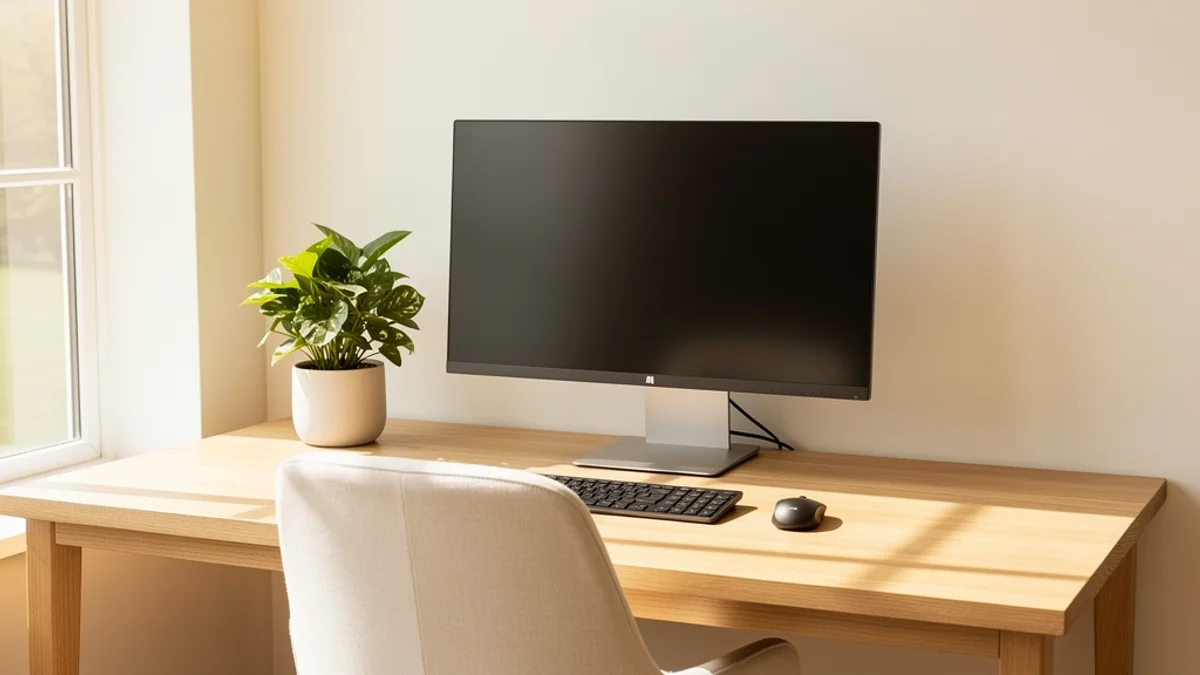
OSHA’s workstation guidance is specific: the top of the monitor should sit “at or slightly below eye level,” with the centre about 15 to 20 degrees below horizontal, at a viewing distance of 20 to 40 inches. If your primary screen is lower than that, your neck creeps forward to meet it - the same hunch, different cause. Raise it on a stand or an arm until the top edge is at your eye line.
The colour-accuracy wrinkle: designers who care about a calibrated display sometimes tuck it at an odd height or angle to control glare, then crane to use it. Calibrate for colour and position for posture - the two aren’t in conflict if the monitor is on an adjustable arm.
Your eyes need breaks as much as your spine. The American Optometric Association recommends the 20-20-20 rule: every 20 minutes, look at something 20 feet away for 20 seconds. The AOA notes that people spending two or more continuous hours a day on a screen are at greatest risk of digital eye strain - and that its symptoms include neck and shoulder pain, not just tired eyes. Bonus: glancing across the room forces you to lift your head, which resets the hunch for free.
The Desk Foundation (Quick, Because It’s Table Stakes)
The rest is standard good-desk hygiene, and it matters, but it’s the same advice every desk worker gets. Briefly:
- Chair adjusted to fit you. Feet flat on the floor, hips level with or slightly above the knees, lower back supported. An adjustable chair you’ve actually tuned beats an expensive one you haven’t.
- Elbows bent between 90 and 120 degrees, shoulders relaxed, per OSHA’s neutral-posture guidance. Don’t shrug your shoulders up to reach the tablet.
- Wrists straight and supported while drawing, neutral while typing.
If rounded shoulders are already your default - very common in artists who hunch over a tablet - our guide to fixing rounded shoulders has a targeted protocol, and shoulder pain from sitting covers the mouse-and-pen side of it. A short daily routine from our posture exercises for desk workers - chin tucks, doorway chest stretch, scapular squeezes, thoracic extension - directly counters the designer hunch.

The Real Secret: There’s No Perfect Posture, Only Movement
There is no magic position you can freeze in, and every “best ergonomic setup” article skips past that. OSHA says it directly: “Regardless of how good your working posture is, working in the same posture or sitting still for prolonged periods is not healthy.” The best posture is a moving one. A perfectly angled tablet held rigidly for four hours still causes problems.
For most desk workers, the fix is to build movement into the day - something like the 20-8-2 rule, or alternating sitting and standing the way our standing desk vs sitting guide describes. Designers can absolutely do this. The trouble is the flow state. When you’re deep in a piece, you will not remember to stand at the 30-minute mark, because the part of your brain that tracks time has gone quiet. Willpower-based reminders fail precisely when you need them most.
That gap is exactly why I built SitApp. It uses your webcam and AI-powered slouch detection to watch your actual posture and give you a gentle nudge when you start to hunch over the tablet - not on a fixed timer that interrupts good stretches, but only when you genuinely slip. You calibrate it once on your own good and bad posture, and then the Droid keeps watch so you don’t have to. Crucially for anyone whose webcam is pointed at them all day: it runs entirely on your machine, and no images or visual data ever leave your device. If you’re wary of any camera-based wellness tool - and you should be - our health app privacy guide lays out exactly what to check first.
A tablet angled up off the desk, a monitor at eye level, a stylus hand you treat with respect, and one awareness mechanism that survives the flow state - that’s what actually works. Any single piece is partial. (Developers face a near-identical version of this problem from a different angle - our posture tips for developers covers the coding-specific side.)
FAQ
What is the best angle for a drawing tablet?
Somewhere between 20 and 45 degrees for most people. A flat tablet forces your head into deep forward flexion, which is the main cause of designer neck pain. Around 20 degrees is comfortable for long sessions and gentle on the wrist; steeper angles bring your eyeline up further but can fatigue the drawing arm. Use a stand or the tablet’s built-in legs, and adjust until your neck stays out of a deep downward bend.
Does drawing on a tablet cause carpal tunnel or RSI?
Long, repetitive drawing concentrates strain in one hand, and digital creatives are a high-risk group - computer users account for up to 40% of RSI conditions. It isn’t inevitable, though. Holding the pen lightly, drawing from the shoulder rather than the wrist, varying your input devices, and taking real hand breaks all reduce the load. Persistent tingling, weakness, or pain warrants a physiotherapist.
Is a Cintiq or an iPad worse for posture than a regular tablet?
A pen display you lay flat is the worst case, because it pulls your head down to look at the surface you’re drawing on. A non-display tablet (like a Wacom Intuos) actually lets your head stay up, since you watch the monitor instead. Whichever you use, get the surface or the screen onto an angle and keep your eyeline closer to level.
How often should designers take breaks?
Aim for a position change every 20 to 30 minutes and a real movement break every hour, plus the 20-20-20 rule for your eyes. The hard part for designers isn’t the schedule - it’s remembering during a flow state. Pair breaks with something automatic, or use a posture-aware tool that nudges you when you actually start to slouch.
Why does my neck and upper back hurt after long design sessions?
Almost always because you’re looking down at a flat tablet for hours, which can load your cervical spine with the equivalent of 40 to 60 pounds of force and roll your shoulders forward. Raise and angle your drawing surface, lift your monitor to eye level, and add a short daily stretch routine. The pain is usually mechanical and responds well to fixing the geometry.
The Bottom Line
Design work is uniquely good at sneaking you into a hunch. The flat tablet drags your head down, the stylus loads one hand, the flow state silences every warning your body sends, and the gear practically invites you to lean in. The musculoskeletal data on computer workers makes the cost clear.
Most of the fixes are concrete and one-time:
- Beat the hunch trap. Angle your tablet or pen display up off the desk so you’re not staring straight down at it.
- Align tablet and monitor. Draw and look in roughly the same direction. Lift your monitor to eye level.
- Respect your stylus hand. Light grip, draw from the shoulder, vary your input, take hand breaks.
- Run a short daily routine. Chin tucks, chest stretch, scapular squeezes, thoracic extension.
- Keep moving. No posture is good if you hold it for four hours straight.
- Layer in awareness. Use a cue that survives the flow state, because willpower won’t.
The aches that designers write off as the price of doing creative work are almost always mechanical. Fix the geometry, take care of the hand, keep moving. Most of them go away.
If you want a low-friction way to keep posture awareness running while you’re lost in a piece, SitApp’s free tier gives you an hour of on-device AI posture monitoring a day. It’s what I use at my own desk, and catching the hunch before it sets in is the whole reason this project exists.
For the tablet-specific details - calibrating a drawing posture, external webcams, alerts during client calls - see the posture app for designers page.
