
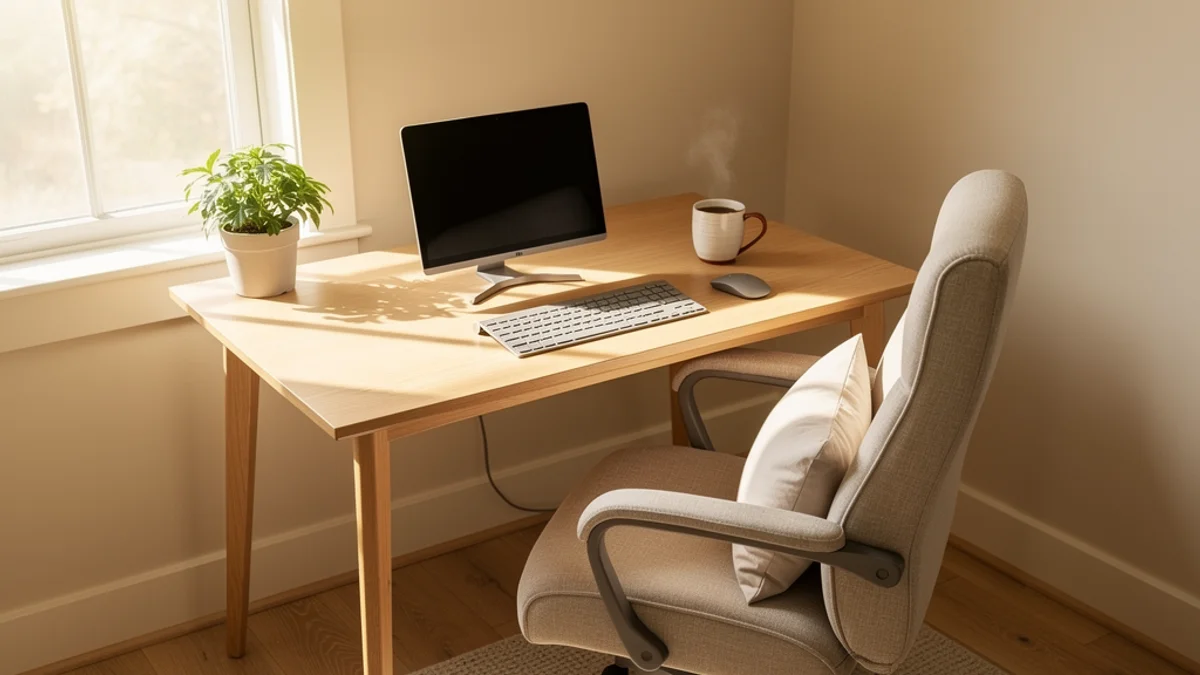
Three hours ago, you sat down at your kitchen table with a coffee and good intentions. Now your neck is stiff, your lower back is aching, and you’re reading this while hunched over the very laptop that’s causing the problem.
Sound familiar? You’re not alone. 61% of remote workers report musculoskeletal discomfort while working from home, and 92% of chiropractors say their patients’ complaints have increased since the remote work boom.
Poor remote work posture sneaks up on you. It’s the kind of thing you don’t notice for weeks or months - a bit of tightness at 4pm, a neck that cricks when you stand up - until one Friday the pain is bad enough to push you to book a physio. Your spine wasn’t collapsing all at once; the pain just crept in gradually enough that it felt normal.
Here’s the encouraging part: you can fix most work from home ergonomics problems in under 30 minutes, and 80% of the improvement comes from positioning, not expensive purchases. This guide covers everything from your chair to your lighting, with specific price points and the one habit that makes all the other changes stick.
Why Work From Home Ergonomics Matters More Than You Think
It’s tempting to shrug off a stiff neck or sore lower back as “just part of desk work.” But poor work from home ergonomics cost more than comfort.
Research published in Scientific Reports found that 80.81% of office workers show signs of work-related musculoskeletal disorders. The most commonly affected areas: neck (58.6%), lower back (52.5%), and shoulders (37.4%). These aren’t minor inconveniences. Left unchecked, they progress from occasional stiffness to chronic conditions that affect your sleep, your mood, and your ability to focus.
There’s also the productivity angle that most ergonomics guides skip entirely. When your back hurts, your brain spends energy managing discomfort instead of doing deep work. A 2025 meta-analysis of ergonomic interventions for computer workers found meaningful reductions in pain and discomfort across neck, shoulder and back regions. Fewer aches, yes - but also better output, more energy at the end of the day, and a longer career without pain limiting what you can do.
The good news? Most work from home ergonomics fixes are straightforward, and you don’t need to spend thousands. Let’s start with the piece that matters most.
Your Chair: The Foundation of Everything
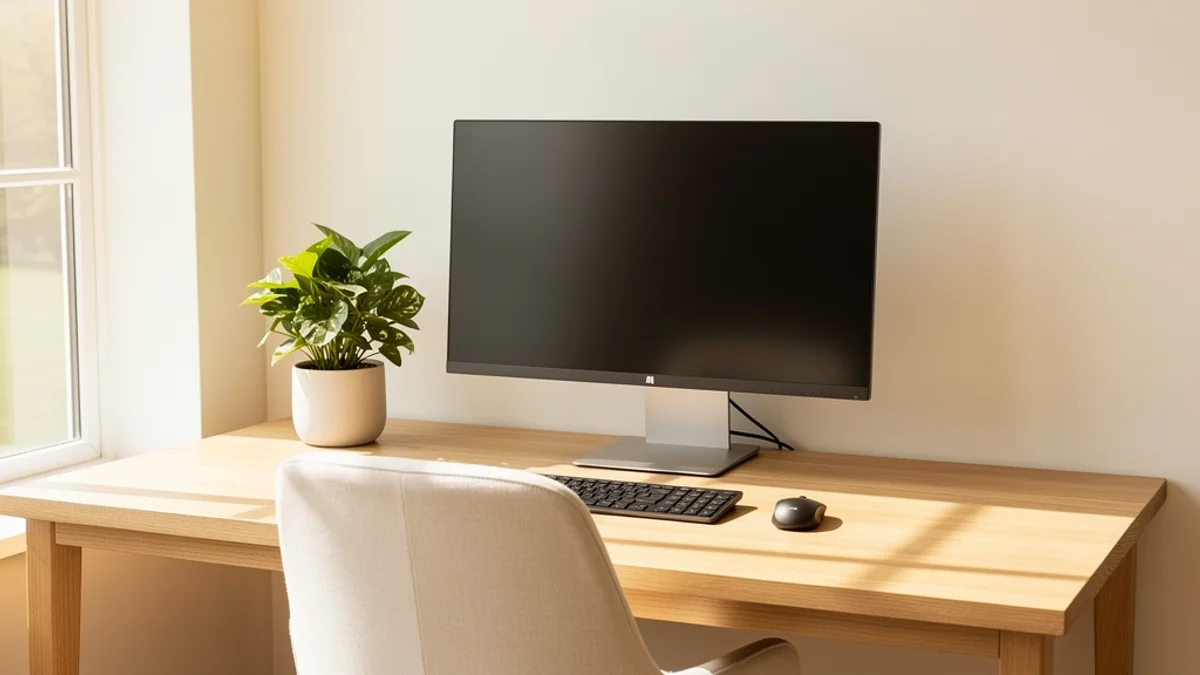
If you’re sitting on a dining chair, a kitchen stool, or, let’s be honest, your bed, this is the single biggest upgrade you can make to your WFH desk setup.
The goal is what ergonomists call the “90-90-90 position”: hips at 90, knees at 90, elbows at 90. Your feet should sit flat on the floor (or a footrest), your thighs parallel to it. There should be a two-to-three finger gap between the front edge of your seat and the back of your knees. And your lower back needs support: either built-in lumbar support or a rolled-up towel placed just above your hips.
What to Spend
Reddit’s most repeated ergonomics advice is “buy the best chair you can afford.” But what does that actually look like?
Under $75: The Sweetcrispy ergonomic chair (~$63 on Amazon) gets consistently positive reviews for basic adjustability. Pair it with a rolled towel for lumbar support and you’re covering the fundamentals.
$100-$200: The Marsail ($118) and TRALT ($140) offer adjustable lumbar, mesh backs, and flip-up arms. The IKEA Markus (~$200) is a long-standing favourite in remote work communities. This is the sweet spot where most people get the biggest jump in comfort.
$500+: Herman Miller Embody, Steelcase Leap. Excellent chairs, no question. But here’s what experienced remote workers will tell you: the gap between no ergonomic chair and a $150 one is enormous. The gap between $150 and $1,500? Much smaller than you’d expect.
If budget is tight, start with a cushion for lumbar support and a footrest. These two additions can transform a basic chair for under $30. For more cost-effective hacks, see our guide to building an ergonomic home office on a budget.
Quick Setup Reference
| Body Part | Target Position | Quick Fix |
|---|---|---|
| Feet | Flat on floor | Footrest or stack of books |
| Knees | 90 angle | Adjust chair height |
| Hips | 90 angle, back of chair | Seat depth adjustment |
| Lower back | Supported curve | Rolled towel or lumbar cushion |
| Elbows | 90 angle, relaxed shoulders | Armrest height or desk height |
| Eyes | Top third of screen | Monitor riser or book stack |
| Wrists | Straight, neutral | External keyboard, no keyboard tilt |
Monitor, Keyboard, and Desk: Getting the Geometry Right
Your chair is the foundation of any ergonomic home office, but the geometry of your screen, keyboard, and desk determines whether you’re sitting well or slowly craning your neck forward all day.
Monitor Position
The top of your screen should sit at or slightly below eye level. If you’re looking down at a laptop on your desk, your head is tilting forward, and according to the Cleveland Clinic, even a 15-degree forward tilt increases the perceived weight on your neck from 10 to 27 pounds. That’s an extra 17 pounds of strain pulling on your cervical spine for every hour you work.
Place your monitor about an arm’s length away (50-70 cm) and tilt the screen back 10-20 degrees so your natural line of sight hits the upper third. A stack of books or a $15 monitor riser handles this.
A common pattern among remote workers: spending hundreds (or thousands) on an expensive chair and finding the neck pain doesn’t go away, because the real problem was monitor height all along. A $12 laptop stand fixes what an expensive chair can’t.
Keyboard and Mouse
If you work on a laptop, get an external keyboard and mouse. No exceptions. A laptop forces you to choose between your screen being at the right height and your keyboard being at the right height. You can’t have both without separating them.
Keep your keyboard close to the edge of your desk so your elbows rest at 90 degrees with your shoulders relaxed, not reaching forward. Your wrists should be straight, not angled up. Avoid those built-in keyboard feet that tilt the keyboard toward you. If your wrists ache, a split keyboard and vertical mouse are worth the one-week adjustment period. Remote work forums are full of people saying the split keyboard and vertical mouse fixed wrist pain that months of stretching hadn’t touched.
Desk Height
Your desk should position your forearms parallel to the floor when your elbows are at 90 degrees. Standard desks (around 73-75 cm) work for people around 5’10” to 6’0”. If you’re shorter, raise your chair and use a footrest. If you’re taller, desk risers or an adjustable-height desk bring the surface to the right level. For a deeper dive into getting your seated position right, see our guide to proper desk posture.
Your Environment: Lighting, Noise, and the Stuff Nobody Mentions
Most ergonomic home office guides stop at the desk. But your environment shapes your posture more than you’d think.
Lighting
Bad lighting is an overlooked part of work from home ergonomics. It causes you to lean forward and squint, which collapses your posture. Position natural light to come from the side, not from behind your monitor (causes glare) or from behind you (creates screen reflections). Add a task lamp to eliminate shadows on your keyboard, and use the 20-20-20 rule for your eyes: every 20 minutes, look at something 20 feet away for 20 seconds.
Noise and Temperature
Noise fatigue is real. If you’re tensing your shoulders against a noisy environment, that tension accumulates. Noise-cancelling headphones can reduce that physical tension alongside the mental distraction - one remote worker described them as creating “a bubble of focus.” Temperature matters too: if you’re cold, you hunch. Keep your workspace at a comfortable temperature and consider a small space heater for drafty rooms.
The Emotional Setup
Here’s something that rarely makes it into ergonomics guides: your relationship with your workspace affects your posture. A cluttered, temporary-feeling desk encourages temporary-feeling posture. Ten minutes of cable management and a plant shifts something. As one remote worker put it: “When my desk was minimal, I felt calmer. When I added a few personal touches, I felt more connected to my space.”
Standing Desks: The Honest Truth
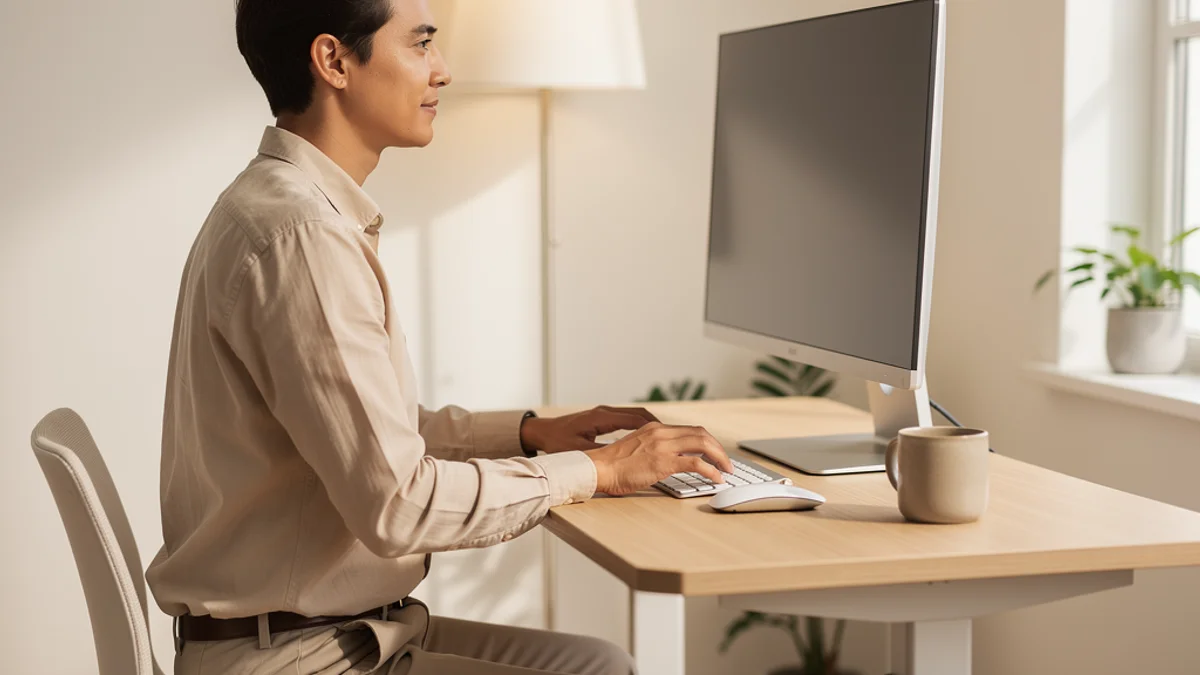
Standing desks get recommended so often that you’d think they’re mandatory for good work from home ergonomics. The honest answer is more complicated.
Standing all day is no better for you than sitting all day. The benefit comes from alternating. The research-supported ratio is the 20-8-2 rule: for every 30 minutes, spend 20 sitting, 8 standing, and 2 moving. This keeps your joints lubricated and your muscles active without the fatigue that comes from prolonged standing.
But here’s what the standing desk evangelists don’t mention: a lot of people buy them and never use the standing feature. The desk stays at sitting height because standing while typing feels awkward at first, or because there’s no anti-fatigue mat and their feet hurt after 10 minutes.
If you’re considering a standing desk, start with a sit-stand converter (~$150-300) rather than replacing your entire desk. Use it with an anti-fatigue mat. And give yourself two weeks to build the habit before deciding whether standing works for you.
If you find yourself never raising it, a good seated setup serves you just as well. Standing isn’t for everyone, and the evidence backs both approaches when done right.

Movement and Breaks: The Habit That Matters Most
You can have the most perfectly adjusted chair, the ideal monitor height, and a standing desk, and still end up with back pain if you don’t move.
Physical therapists put it plainly: “motion is lotion.” Your joints are self-lubricating, but only when they move. Sitting still for hours, no matter how ergonomically, starves your joints and muscles of the movement they need. This matters more than anything else in the guide.
The Protocols That Work
The 30-minute rule: Stand up and move at least once every 30 minutes. Walk to the kitchen, stretch, even just stand for 60 seconds. This single habit prevents more problems than any equipment upgrade.
The 20-20-20 rule: Every 20 minutes, focus on an object 20 feet away for 20 seconds. Your eye muscles fatigue just like any other muscle, and close-up screen focus all day leads to eye strain and the headaches that come with it.
Micro-breaks: Every 15-20 minutes, do a small reset. Roll your shoulders back. Tuck your chin. Squeeze your shoulder blades together. These take five seconds and prevent the slow forward creep that happens over an hour of focused work.
The Five-Minute Reset
Once an hour, try this quick routine:
- Wall angels (30 seconds): Stand with your back against a wall, arms at 90 degrees, and slowly slide them up and down
- Chin tucks (30 seconds): Pull your chin straight back to create a double chin - this reverses the forward head position
- Thoracic extensions (30 seconds): Clasp your hands behind your head and gently arch your upper back over the chair
- Hip flexor stretch (30 seconds each side): Kneel on one knee and push your hips forward gently
These four exercises target the exact muscles that desk work deactivates. Five minutes a day improves your remote work posture and helps your body handle the other 7 hours and 55 minutes far better. For the complete routine with strengthening moves, see our posture exercises for desk workers guide.

The Awareness Gap: Why You Know All This But Still Slouch
Here’s the part most home office ergonomics guides skip entirely.
You’ve probably read advice like this before. You know what good posture looks like. You know you should take breaks. And yet, within five minutes of getting absorbed in your work, you’re back to slouching.
As one person put it: “You must have already read the same suggestions a gazillion times. I did too, but never implemented until my body started showing signs.”
This is the biggest gap in work from home ergonomics. Your conscious attention has better things to do than monitor your spine. When you’re deep in a spreadsheet or debugging code, “sit up straight” is the first thing your brain drops.
This is where the ergonomics conversation needs to evolve. A good setup reduces the harm of bad posture. But the thing that actually changes behaviour is real-time feedback. Something that notices when you’re slouching and reminds you, so your conscious brain doesn’t have to.
That’s the idea behind posture monitoring tools like SitApp. It uses your webcam and on-device AI to learn what good posture looks like for you, then gives you a gentle nudge when you start to slip. Your webcam data never leaves your computer. The Droid runs entirely on your device, so it’s the privacy-first version of having a friend tap you on the shoulder.
You can try it free with 1 hour of daily monitoring. Pair it with a good setup, and you’ve got the ergonomics covered and the awareness to make it stick.
Frequently Asked Questions
What’s the Single Most Impactful Change for a Home Office Setup for Back Pain?
Raising your monitor to eye level. It’s the most consistently cited “game-changer” across ergonomics research and remote work communities. A 15-degree downward head tilt adds 17 extra pounds of strain on your neck. A $15 monitor riser or a stack of books eliminates it immediately.
How Much Should I Spend on an Ergonomic Home Office?
Between $100 and $200 covers 80% of the improvement. That gets you a decent ergonomic chair, a monitor riser, and an external keyboard and mouse. Premium equipment is nice, but the biggest gains come from getting the basics right, not from spending $1,500 on a single chair.
Is a Standing Desk Worth It for Working From Home?
It depends on whether you’ll actually use it standing. Many buyers keep theirs at sitting height permanently. If you’re genuinely going to alternate positions using the 20-8-2 rule (20 minutes sitting, 8 standing, 2 moving), a standing desk helps. If you’re not sure, try a sit-stand converter first - they’re cheaper and reversible.
How Often Should I Take Breaks When Working From Home?
Every 30 minutes at minimum. Stand up, stretch, or walk for at least 60 seconds. Follow the 20-20-20 rule for your eyes too: every 20 minutes, look at something 20 feet away for 20 seconds. Micro-breaks every 15-20 minutes (shoulder rolls, chin tucks) compound these benefits.
Can Software Help With Work From Home Ergonomics?
Yes. Posture monitoring apps like SitApp use AI to detect slouching through your webcam and send gentle reminders. This bridges the “awareness gap” - the reason most people know good posture matters but forget within minutes. SitApp runs entirely on your device with full privacy protection, and the free tier provides 1 hour of daily monitoring.
Your Ergonomics Action Plan
Good work from home ergonomics means getting the fundamentals right and building the awareness to maintain them. Perfection isn’t the target.
This week:
- Raise your monitor to eye level (books, a box, or a $15 riser)
- Add lumbar support to your chair (a rolled towel works)
- Set a 30-minute timer to remind yourself to stand and stretch
This month:
- Invest in an ergonomic chair in your budget range ($60-200 covers most needs)
- Get an external keyboard and mouse if you use a laptop
- Try a posture monitoring tool to build lasting awareness
The long game:
- Consider a sit-stand converter if movement variety appeals to you
- Build the five-minute exercise reset into your daily routine
- Upgrade to SitApp Pro for all-day monitoring once the habit clicks
Your setup doesn’t need to be perfect. Better than the kitchen table, better than the couch, better than ignoring the ache until it turns into something worse. One change today is enough to start.
